Drop an image in. Size it. Crop it. Beautify it. Caption it. Share it.
PixPad is a free browser-based image-composition tool for preparing pictures for sharing on social media and messaging platforms. Start from a template or go your own way: background, border, crop, scale and position, effects and annotations. Every control is optional. Free, in your browser. No account, no upload.
The editor needs a window at least 960 pixels wide. Open this page on a laptop or desktop computer.
One picture in four template shapes, each in a different preset.
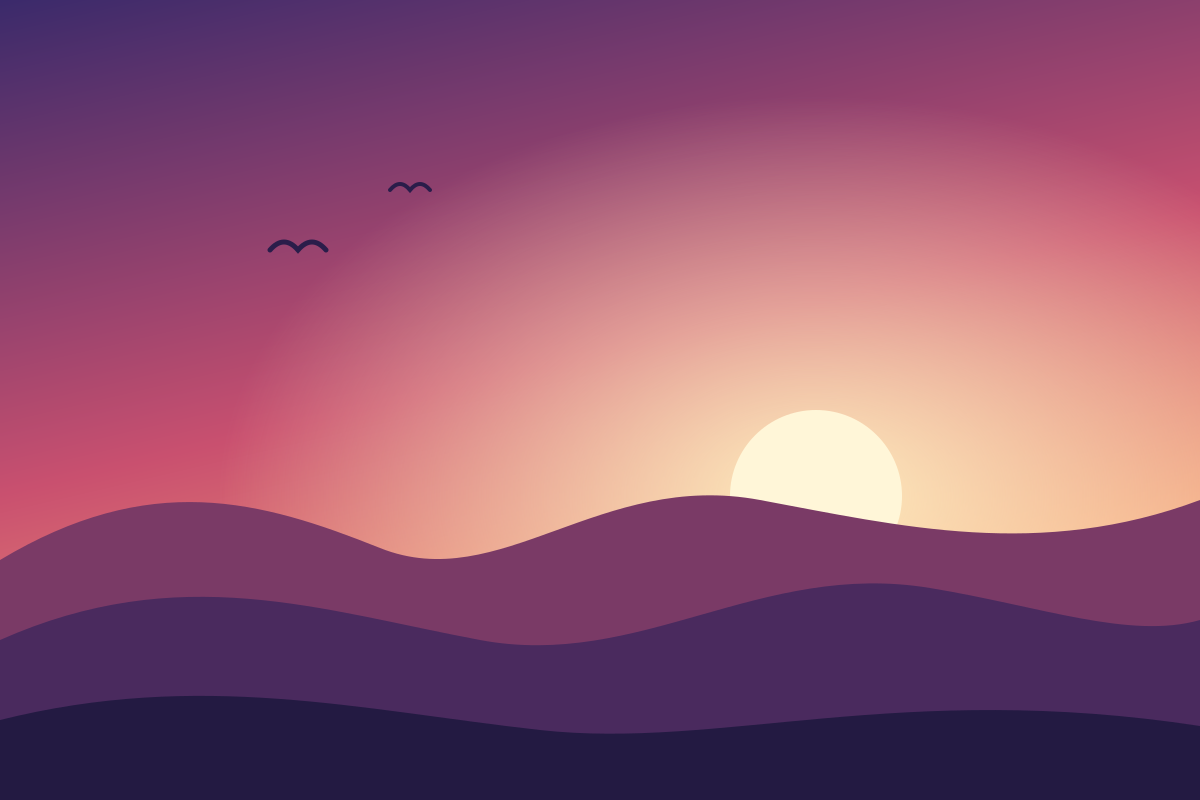
Made to get an image ready. Here is the idea.
Why PixPad
A photo or a screenshot rarely has the shape that the place you want to post it expects. PixPad is for that moment. You have an image, you know where it is going, and you want it to look right without learning an editor first.
So it does one job and stays out of the way. There is no account, nothing to pay for and nothing to set up. Every control is optional, so you can stop as soon as the picture looks right.
How you use it
Open an image by dragging it in, browsing for it or pasting it. Choose a template for the place you will post it, pick a ratio, or type a size of your own. PixPad sets the canvas and fills the empty space with a blurred copy of your image, so there is a result before you touch anything else.
From there, change only what you want to: the background, a border, the position and crop of the image, a filter, text and shapes. When it looks right, download a PNG, JPG or WebP, or copy the picture to the clipboard.
What it is
PixPad is an image editor that runs in your browser, on a laptop or desktop computer. It works on one image at a time and has 67 templates for 15 platforms. It can also be installed as an app.
Your image is edited on your own device and is never uploaded. The only thing PixPad sends is three anonymous counts, and you can switch those off.
From image to result, with every tweak you want.
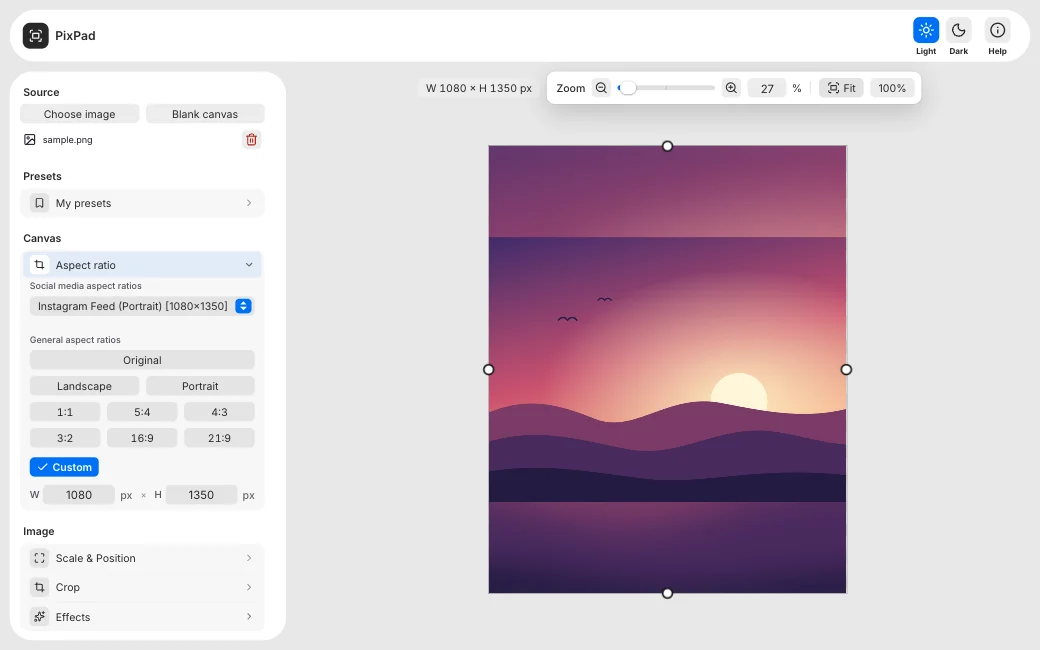
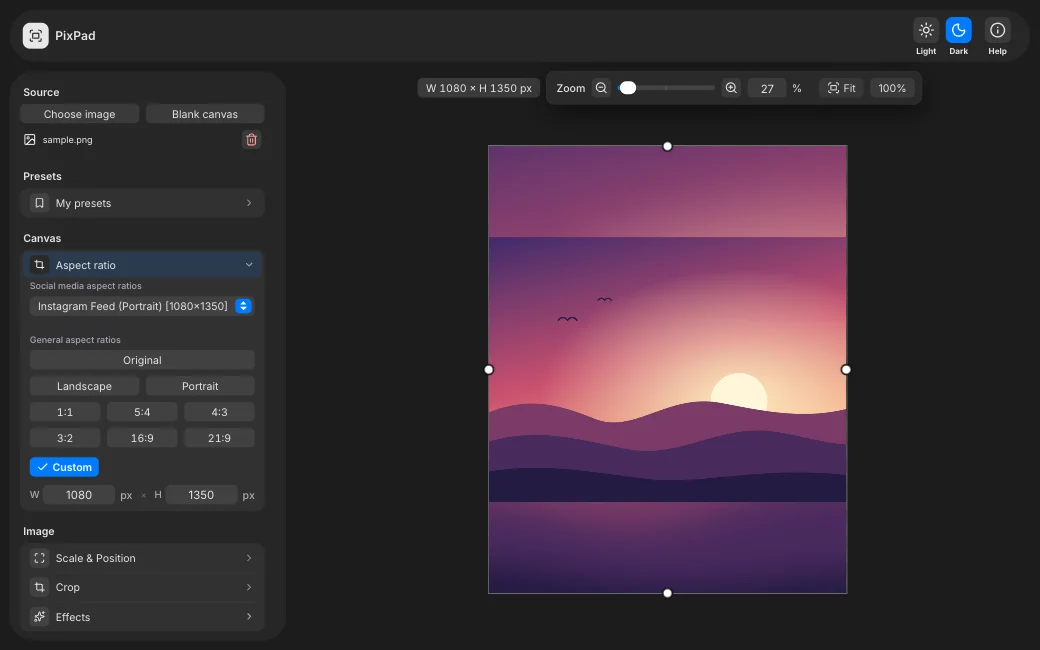
Open an image
Drag one in, browse for it or paste it. PNG, JPEG, WebP, GIF and BMP all work.
Pick a template or customize
Start from a ready-made template or set your own size. Then adjust the background, borders and text, or apply a preset.
Download
Export a PNG, JPG or WebP and see the estimated file size first. Or copy the result to the clipboard.
Start from a template. Any platform, any shape.
67 ready-made templates for 15 platforms cover feeds, stories, covers, banners and profile images. The ratios 1:1, 4:5, 3:4, 2:3, 9:16 and 9:21 are one click away, and so is a custom size.
Each template sets the canvas to the exact pixel size of that format. Switch between landscape and portrait, keep the original shape of your image, or type a width and a height of your own.
- 1:1
- 4:55:4
- 3:44:3
- 2:33:2
- 9:1616:9
- 9:2121:9
Templates for 15 platforms
- Bluesky
- Discord
- Signal
- Snapchat
- Telegram
- Threads
- TikTok
- X (Twitter)
- YouTube
- Google Business Profile
The same picture, then scaled down and turned a few degrees clockwise.
- Drag to move
- Scale
- Rotate
- Crop every edge
- Fine position sliders
- Undo and redo a crop
Reframe it. Move, scale, rotate and crop.
Drag the image on the canvas to move it. Scale it, rotate it from -180 to 180 degrees and trim each edge with crop.
Scale runs from 10% to 190%. Fine-tune the position with the offset sliders, or send the image back to the centre with one button. Crop the top, right, bottom and left edges on their own or together, keep the aspect ratio if you like, and undo or redo a crop. Scale and crop can also resize the canvas to follow them, unless a template fixes its size.
Fill the space. Blur, colour or gradient.
The empty space around your image starts as a blurred copy of it. Switch to a solid colour or a gradient, and pick colours from your image or with the eyedropper.
Set the blur anywhere from none to full strength. A gradient has two colours and an angle that you choose. The eyedropper picks a colour from anywhere on your screen, for the background, the gradient and the border alike.
The same picture on its blurred copy, then on a gradient.
- Blurred image
- Solid colour
- Gradient
- Colours from your image
- Eyedropper
- Blur strength
- Gradient angle
The same picture, then with a white border, rounded corners and a drop shadow.
- Border on every side
- Rounded corners
- Drop shadow
- Colour filters
- Border colour
- Shadow colour and offset
Finish it off. Borders, shadows and filters.
Add a border with its own thickness on every side, or round the corners. Add a drop shadow, or change the mood with a colour filter. A filter can apply to the background too.
Set one thickness for all four sides or a different one for each, and choose the border colour. The shadow has its own colour, softness and offset in both directions. The filters are vivid, grayscale, sepia, warm and cool, and you can also choose no filter.
Say something. Text, arrows and shapes.
Place text in 21 fonts. Add arrows, rectangles, rounded rectangles and circles, or blur an area to hide a detail. Hold Alt or Option and drag to duplicate.
Text can be bold, from size 10 to 200, in any colour and opacity. Shapes have a fill, an outline, a thickness and an opacity, and each one can be rotated. A blurred area has its own strength and edge softness. The guide grid can be switched on, with the spacing you choose, to line things up.
The same picture, then with a line of text, an arrow and a rectangle.
- Text
- Arrows
- Rectangles
- Circles
- Blur areas
- Guide grid
- Colour and opacity
- Rotate any shape
The same picture, then in three ready-made presets.
- Save your own
- Ready-made presets
- Kept in this browser
- Rename and delete
- Export and import as a file
Save your look. Use it again.
Save the current settings as a preset and apply them to the next image. 9 presets come with PixPad, and the ones you save stay in this browser.
Give a preset a name when you save it. The ready-made ones are copied into your browser the first time you visit, so you can rename or delete them like your own. Export your presets as a file and import them in another browser.
Export it your way. Or just copy it.
Choose PNG, JPG or WebP and an output resolution, and see the estimated file size before you download. Or copy the result to the clipboard.
Width and height can each be set from 100 to 8000 pixels, and linked so the shape stays the same. For JPG and WebP a quality slider from 10% to 100% trades file size against detail.
The picture as a PNG, a JPG and a WebP file.
- PNG
- JPG
- WebP
- Output resolution
- Estimated file size
- Copy to clipboard
- Linked width and height
- Quality for JPG and WebP
Free, in your browser, and installable.
Free
There is nothing to buy and no feature is locked.
Runs from a website
Open the page and start. There is nothing to download or set up.
Install it as an app
Browsers that can install web apps offer it, and PixPad then opens in its own window like any other app.
Your images stay yours.
Nothing is uploaded
PixPad does its work on your device. Your images are never sent to a server.
No account
Open the page and start. There is nothing to sign up for.
Three anonymous counts
PixPad counts how often it is opened, an image is loaded and an image is exported. No image, file name or setting is sent, and you can switch counting off in the Help.
Questions
- Is PixPad free?
- Yes. There is nothing to buy and no account to make.
- Where do my images go?
- Nowhere. The image is edited in your browser and saved only when you download it. The Help explains what the three anonymous counts contain.
- Which files can I open and export?
- You can open PNG, JPEG, WebP, GIF and BMP files. You can export PNG, JPG and WebP.
- Does it work on a phone?
- PixPad is made for a laptop or desktop computer. In a window narrower than 960 pixels it shows a message instead of the editor.
- Can I keep my settings?
- Yes. Save a look as a preset and use it again. 9 presets come with PixPad, and the ones you save stay in this browser.
- Can I install it?
- Browsers that can install web apps offer it, and PixPad then opens in its own window.
Ready to try it?
Open PixPadThe editor needs a window at least 960 pixels wide. Open this page on a laptop or desktop computer.