Pixino: make your pictures look great where you post them
Pixino is a free tool that runs in your browser. It gets your pictures ready for social and chat apps. No account, no upload.
Drop an image in. Size it. Crop it. Beautify it. Caption it. Share it.
Pixino needs a window at least 960 pixels wide. Open this page on a laptop or desktop computer.

Ready-made templates for 14 social and chat apps
- Bluesky
- Discord
- Signal
- Snapchat
- Telegram
- Threads
- TikTok
- X (Twitter)
- YouTube
What Pixino helps you fix
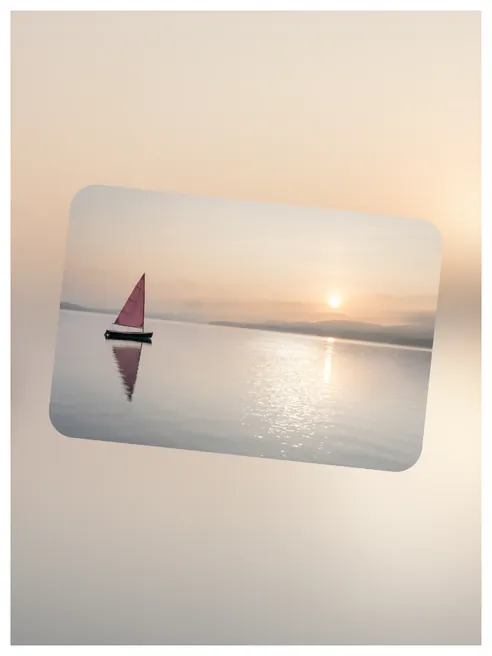
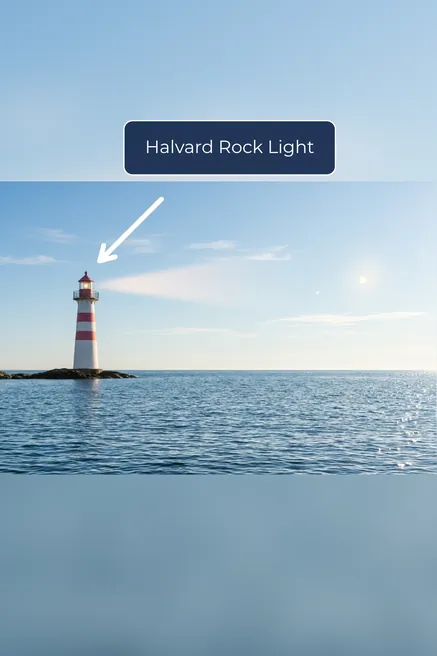
When you post or send a picture in a social or chat app, the app often changes it to fit its own space. It can cut off the edges, so the people at the sides of a group photo disappear, a wide banner loses its sides and a tall sheet loses its top and bottom. It can zoom in on the middle, so part of the picture is cut away and the detail you wanted to show is gone. It can also show the picture as it is, with no arrow, no name and no border to make people look at the right thing. Here are seven examples of what can go wrong, and what Pixino does about each.
Choose a problem from the list below, or use the Next button to go through all seven one by one.
How Pixino works
Three steps, from your picture to a file you can post.
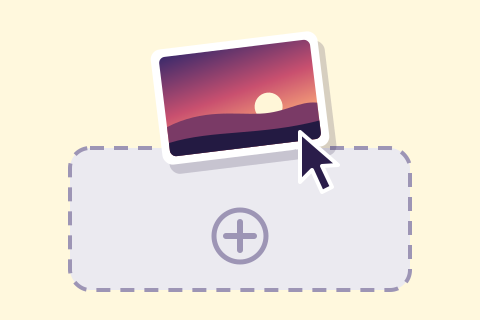
Open a picture
Drag a picture in, choose one from your files or paste it. PNG, JPG, WebP, GIF and BMP files work.
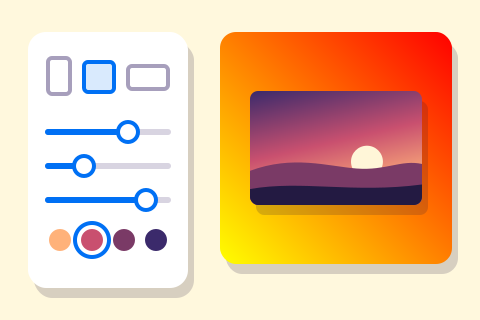
Choose an app or an aspect ratio
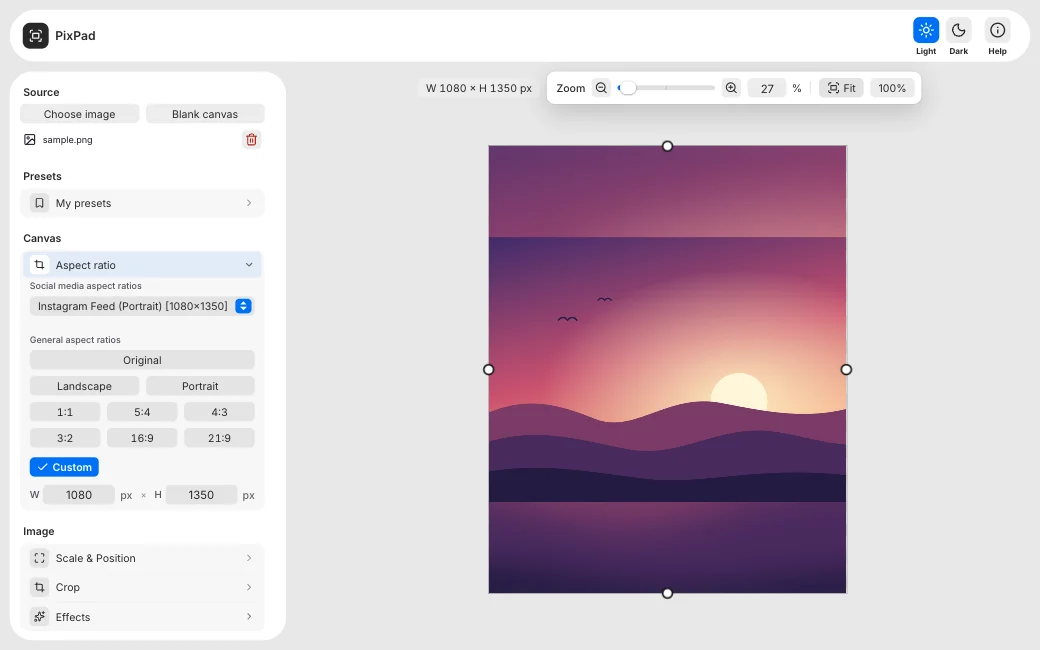
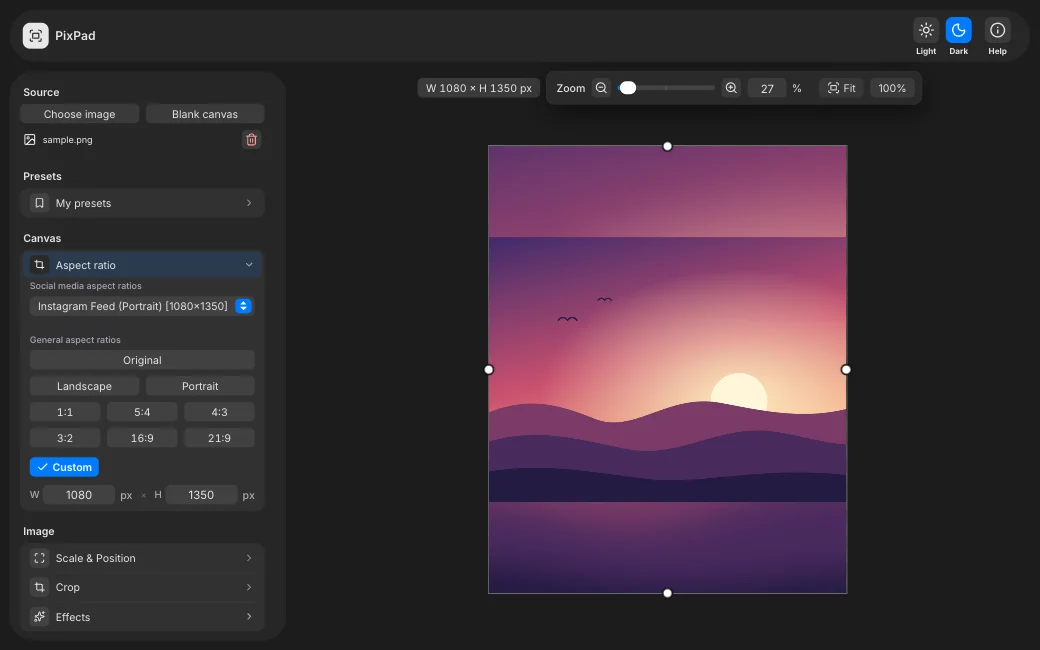
Choose the social or chat app you want to post to, or any aspect ratio you prefer, such as 4:5, or a size of your own. Pixino fits your picture in it and fills the empty space with a blurred copy, so you see a result at once. Then, if you like, improve it with any of the editing tools, such as the background, a border, a filter or text.
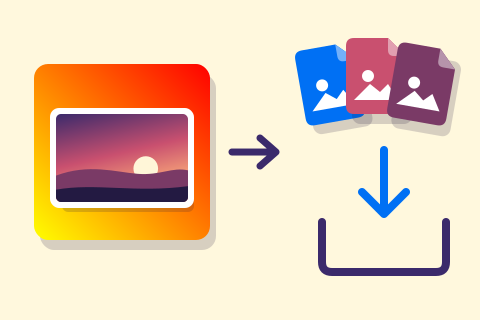
Download
When it looks right, download it as a PNG, JPG or WebP file. Pixino shows the estimated file size first. In browsers that allow it, you can also copy the picture and paste it somewhere else.
What Pixino can do
The tools of the editor, from the aspect ratio of your picture to the file you download.
Everything at a glance
Aspect ratio and size
- 68 templates for 15 platforms
- Set aspect ratios such as 4:5, portrait or landscape
- A size of your own
- The original aspect ratio of your picture
Position and crop
- Drag to move
- Scale
- Rotate
- Crop every edge
Background
- Blurred picture
- Solid colour
- Gradient
- Colour picker (eyedropper)
Border and effects
- Border on every side
- Rounded corners
- Drop shadow
- Colour filters
Text and shapes
- Text
- Arrows
- Rectangles
- Blur to hide a detail
Presets
- Ready-made presets
- Save your own
- Export and import as a file
Export
- PNG, JPG and WebP
- Estimated file size
- Copy to clipboard
- Quality for JPG and WebP
Good to know
- Nothing is uploaded
- No account
- Free
- Install it as an app
Questions
- Why use Pixino before I post a picture?
- Because a social or chat app can change your picture when you post it. It can crop the picture to its own aspect ratio, so people at the edges or words at the sides are cut off. It can zoom in on the middle and lose the detail you wanted to show. A plain picture can also look like any other, with nothing to say what it shows. With Pixino you choose the aspect ratio yourself, from 68 ready-made templates for 15 platforms or a size of your own. The whole picture fits in it, with a blurred copy, a colour or a gradient filling the rest, and you can add an arrow, text, a border or a shadow. You see the result before you post, and you download it in exactly that aspect ratio.
- What does Pixino do to my picture?
- It puts your picture in the aspect ratio you choose and fills the space around it with a blurred copy of the picture, a colour or a gradient. The suggested colours come from your picture, so they match it. You can move, scale, rotate, mirror and crop the picture, and add a border on any side, rounded corners, a shadow or a filter such as Vivid, Grayscale or Sepia. You can also add text, arrows, rectangles and circles, and blur an area to hide a face or a licence plate.
- How do I use it?
- Open your picture by dragging it onto the page, choosing it from your files or pasting it. Pick a template or an aspect ratio for the place you are going to post it. Move, scale or crop the picture inside the frame, and add a border, an effect, text or arrows if you like. Then download the result as a PNG, JPG or WebP file, or copy it to paste into another app where your browser allows it. You can skip everything in between: open a picture, pick a size and download.
- Why not use a full photo editor?
- You can. Pixino is for when you only want your picture in the right aspect ratio and looking finished. It works on one picture at a time, every control is optional, and there is no account, nothing to pay and nothing to learn first.
- Is Pixino free?
- Yes. Pixino costs nothing, there is nothing to buy and you do not need an account. You can open a picture, choose a size and download it without paying or signing up for anything.
- Where do my pictures go?
- Nowhere. Your picture is edited in your browser and never sent to a server. The file you download is drawn fresh, so it does not carry the location or camera details a photo can hold.
- Which files can I open and export?
- You can open PNG, JPG, WebP, GIF and BMP files. You can export PNG, JPG and WebP. PNG keeps sharp text and graphics at full quality, JPG suits photos, and WebP gives the smallest files at good quality. For JPG and WebP you set the quality, and Pixino shows the estimated file size before you download.
- Does it work on a phone?
- No. Pixino needs a laptop or desktop sized window, at least 960 pixels wide. On a smaller screen, such as a phone, it shows a message asking you to open the page on a laptop or desktop computer instead of the editor.
- Can I keep my settings?
- Yes. Save your settings as a preset with a name, and load it later to apply it to another picture in one step. Pixino comes with 9 presets. The ones you save stay in this browser, and you can export them to a file and import that file in another browser or on another computer.
- Can I install it?
- Yes, if your browser offers it. Pixino then opens in its own window, like any other app. You do not need to install it to use it.